


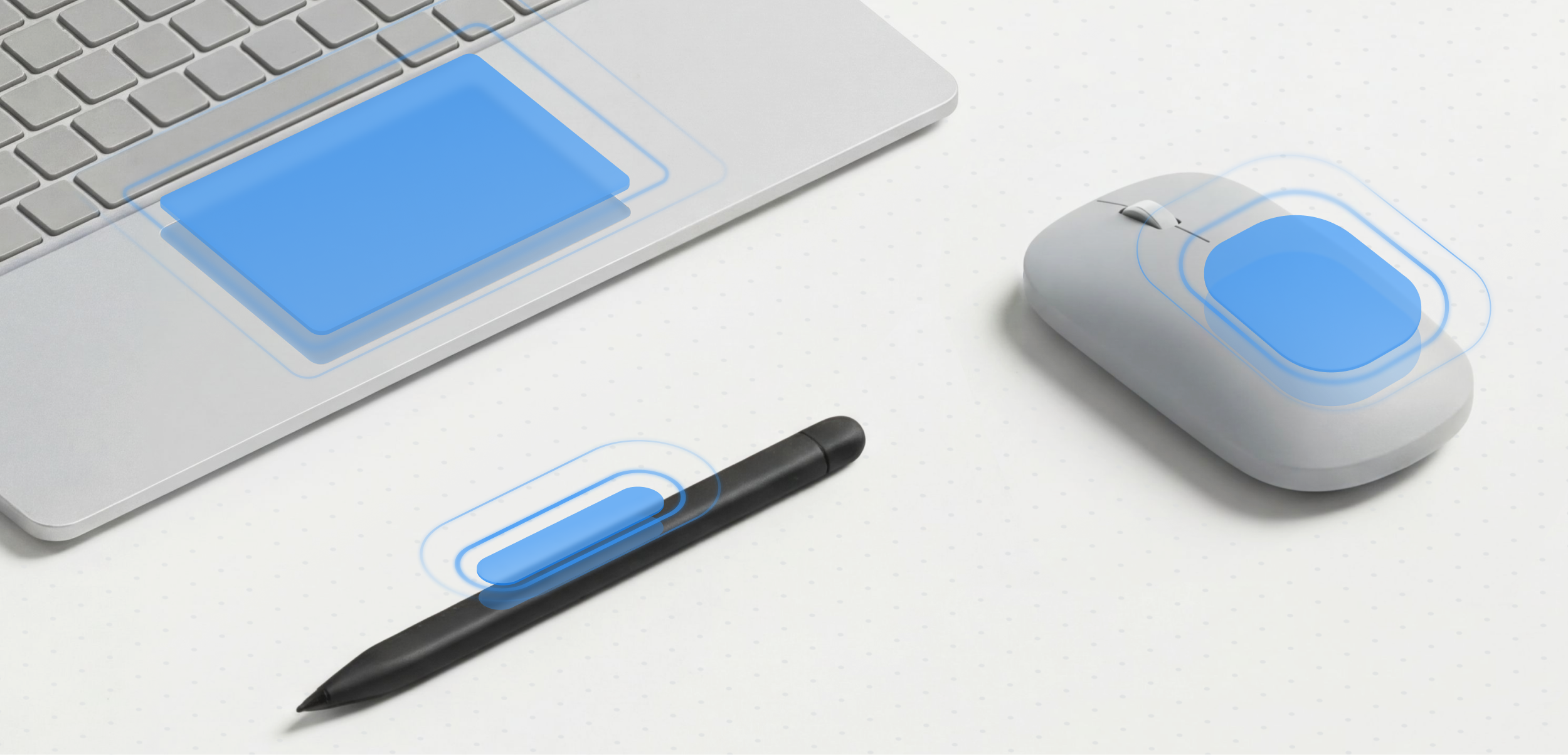
– The estimated reading time is 11 min.
Haptics design and implementation
Guidance for adding haptic feedback to improve clarity, support inclusion, and create more intuitive experiences.
Getting started with haptics
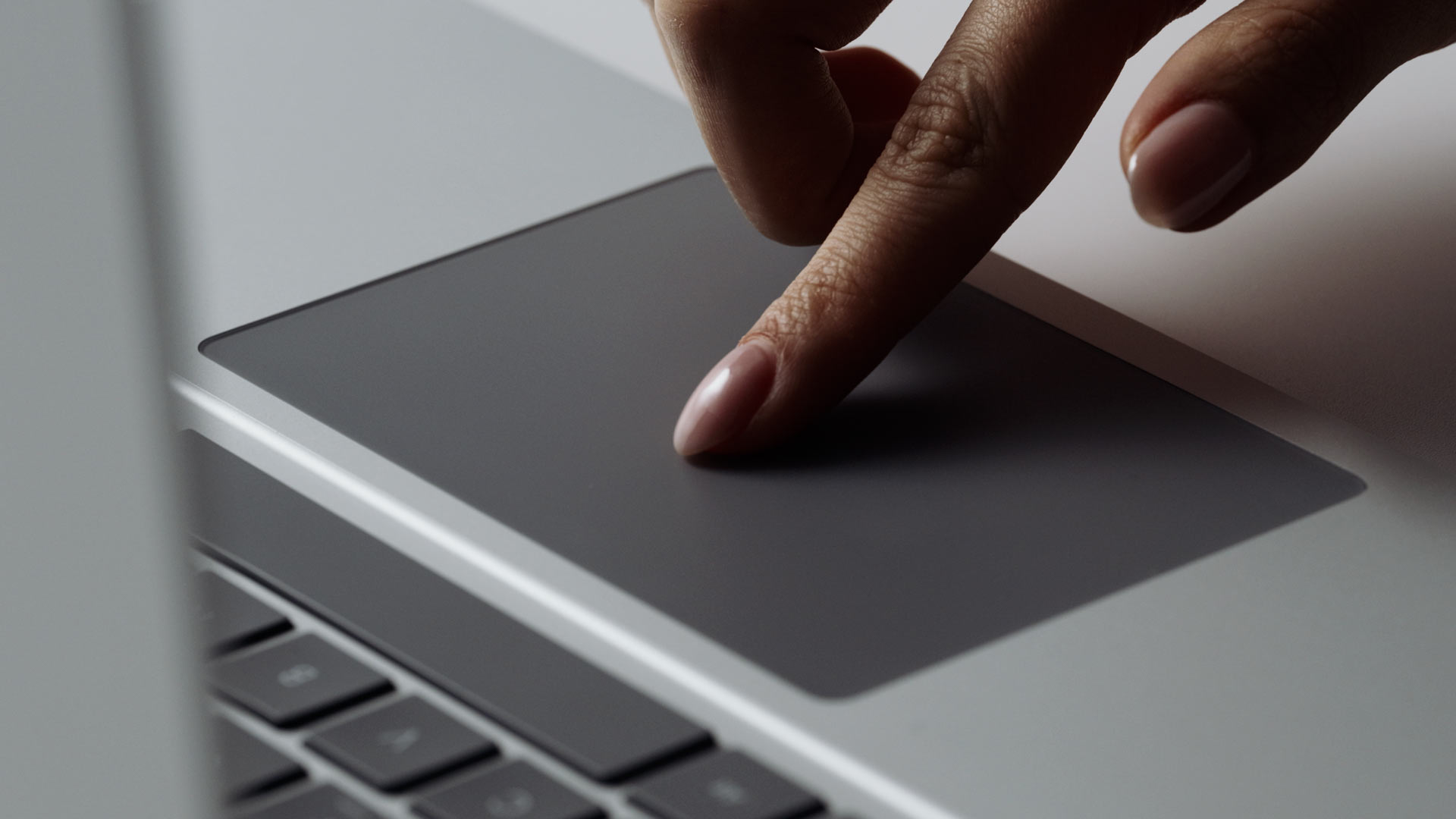
Touch helps people understand how the physical world responds to their actions through immediate feedback. In contrast, digital interfaces often rely on visual or auditory cues alone. Haptics add a sense of touch to digital interactions, making experiences feel more responsive and intuitive.
Windows now supports contextual haptic feedback through the InputHapticsManager API, enabling apps to deliver consistent experiences across supported devices.
Contents:
What is haptics?
Before diving in further, let’s briefly align on the basics:
Haptics is a form of touch-based feedback used to communicate information through physical interaction.

Haptic feedback can be either:
Passive, coming directly from physical interaction with hardware
Active, generated by the device and controlled through software

The InputHapticsManager API enables active haptics, allowing apps to control when feedback occurs and how it feels.
Haptics are most effective when used alongside visual and auditory feedback, reinforcing interactions without adding additional complexity.

Why add haptics?
Clarity Haptic feedback reinforces interactions by providing a physical confirmation, helping make actions feel responsive and reducing uncertainty.
Inclusion Haptics extend feedback beyond visual and auditory channels, helping make interactions more accessible for users with different needs and preferences.
Delight Thoughtfully designed haptics bring interactions to life through subtle, expressive feedback—adding moments of delight beyond basic function.

Haptic language
Windows provides a set of predefined haptic waveforms designed for common interaction patterns. Each waveform has a distinct feel and purpose, helping create consistent experiences across applications and devices.
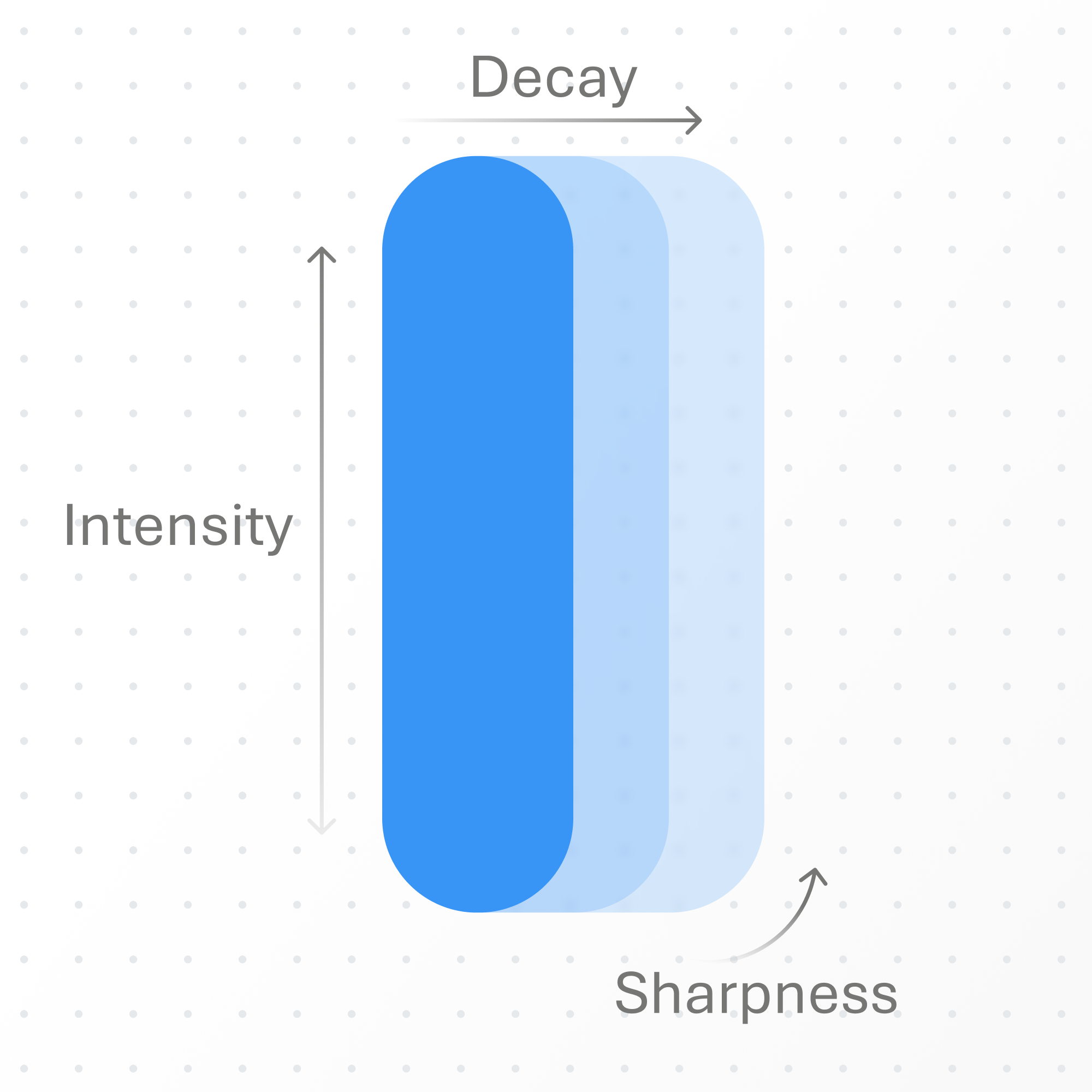
Waveforms are defined by three characteristics:
Intensity
How strong the feedback feels.
Decay
How quickly the feedback
fades.
Sharpness
The character of the feedback, ranging from soft to crisp.
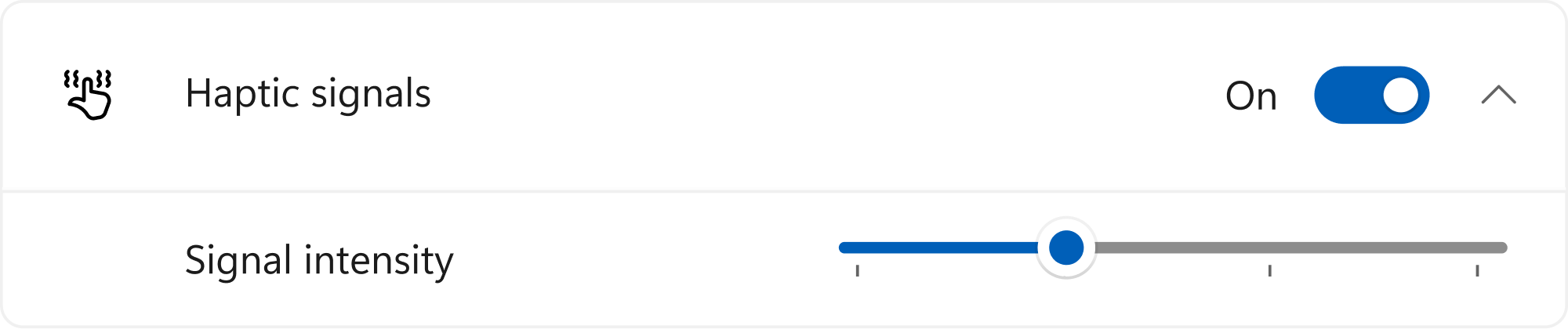
Haptic preferences vary by user. Windows allows users to adjust intensity or turn haptics off.
Design your experience so it remains clear and usable even when haptics are reduced or turned off.
Use the waveforms below to match feedback to specific interaction moments, such as alignment, boundaries, discrete changes, or completed actions.
Interaction feedback
Waveforms in this group provide feedback during an interaction.
Hover
Hover
A light pulse that indicates hover states, signaling an upcoming action
Collide
Collide
A soft pulse that indicates reaching a boundary or limit
Align
Align
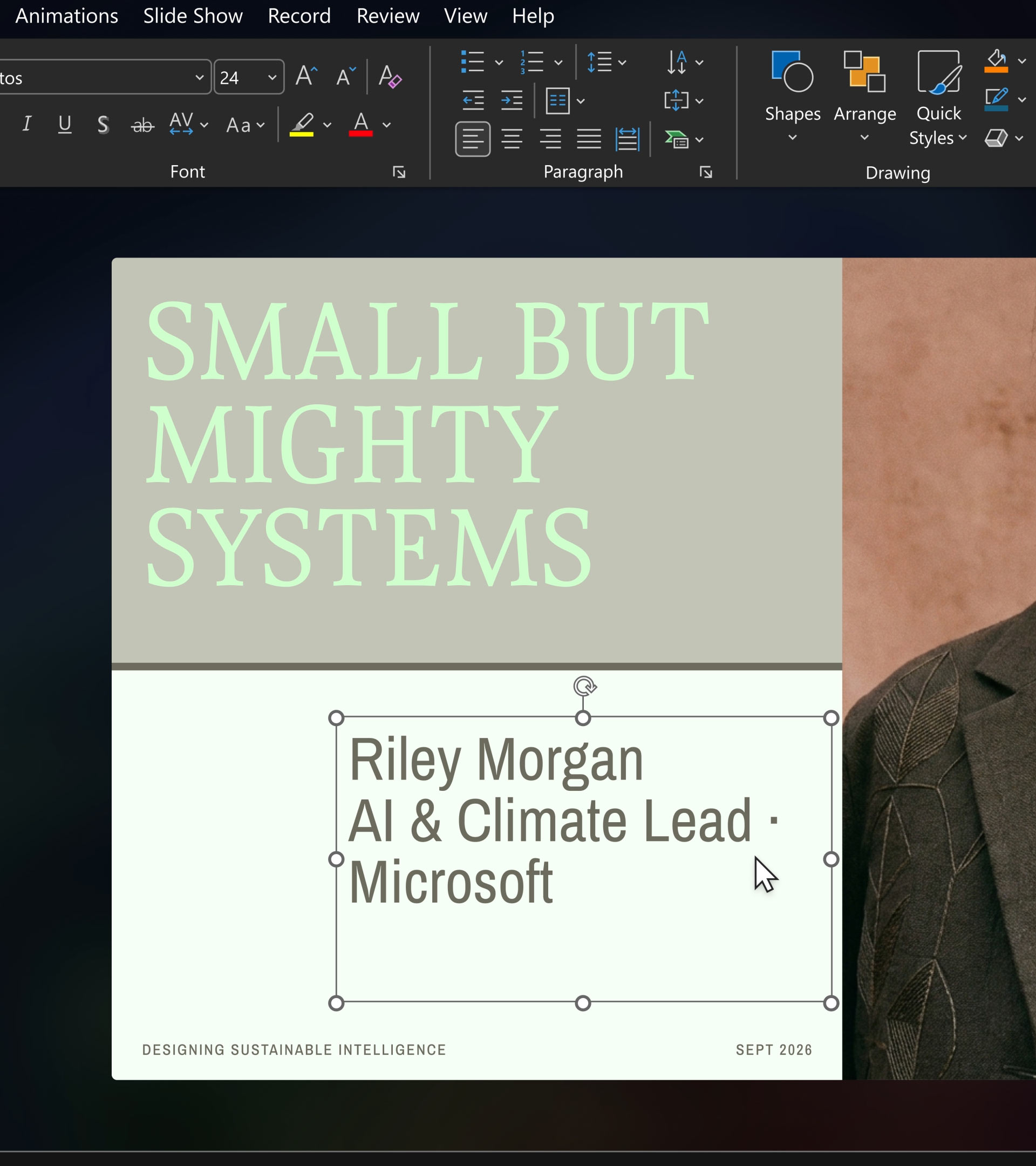
A sharp pulse when an object snaps to an alignment guide
Step
Step
A firm pulse for discrete changes, such as moving through steps or values
Grow
Grow
A dynamic pulse that conveys motion, transitions, or intelligent system activity
Process confirmation
Waveforms in this group communicate the outcome of a completed action.
Success
Success
An ascending pattern that confirms a completed action
Error
Error
A descending pattern that indicates a failed action
When to use haptics?
Haptics should feel like a natural part of the interaction. Use them to reinforce user input, not distract from it.
The following principles guide when and how to use haptics effectively.

1. Establish a clear cause – effect relationship
Haptic feedback should act as a reliable response to user input. Reserve it for user-initiated actions to create a clear and intuitive connection.
To ensure interactions feel immediate, aim for a latency of less than 50 ms. Delays can weaken the connection between action and feedback.
2. Provide signals, not noise
Haptics are most effective when used with clear intent. Not every interaction needs feedback – use it where it adds value.
The scenarios below show a few common patterns where haptics improve clarity and interaction.
Precision: Object Alignment
Purpose
Indicate when an object aligns to the edge or center of another object.
Trigger
While moving or resizing an object, the cursor snaps to an alignment guide.
Recommended Waveform
Align
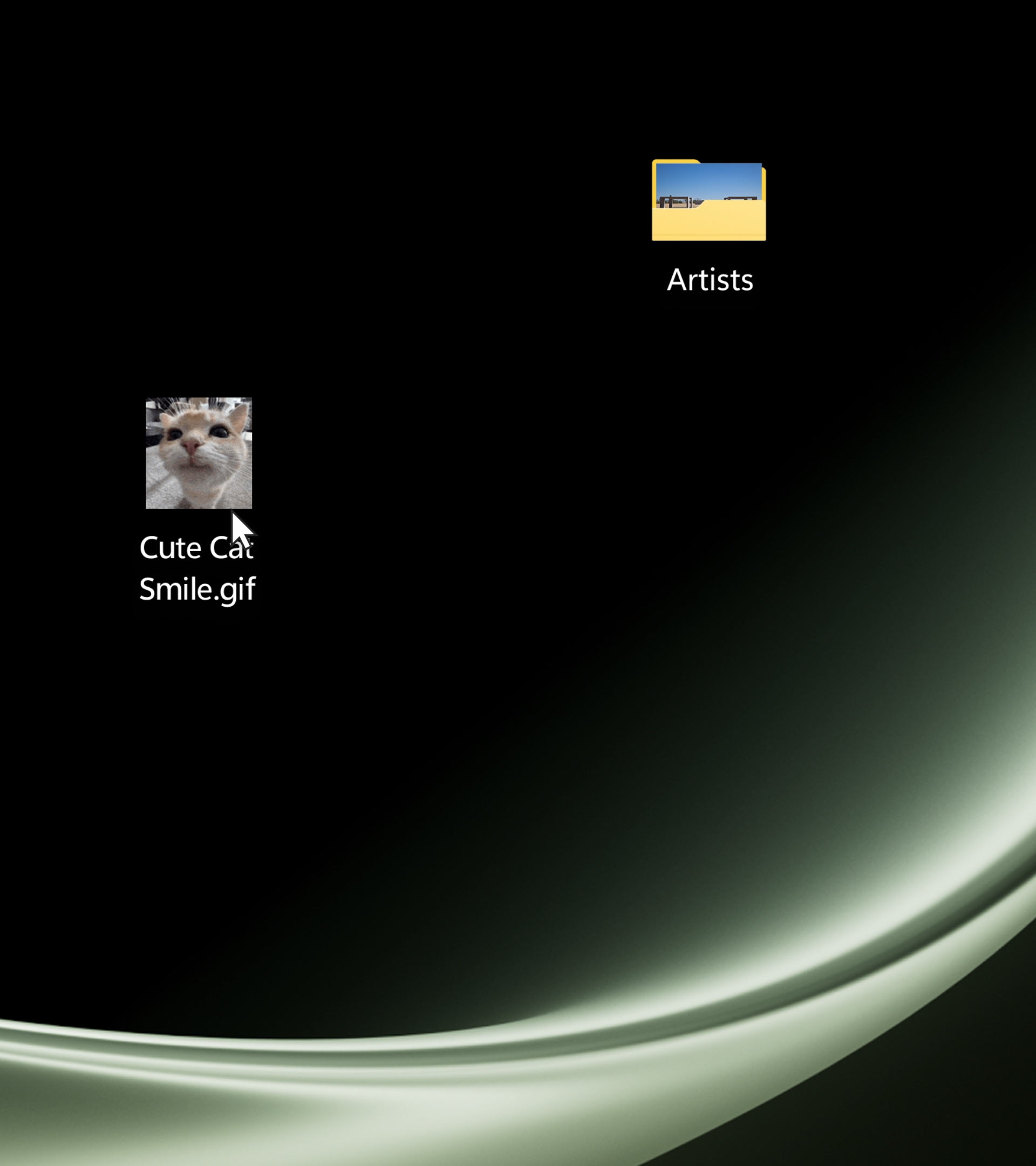
Action zones: Drop Target
Purpose
Indicate that an item can be dropped at the current location.
Trigger
Dragging an item over a valid drop target, such as dropping files into a folder or application.
Recommended Waveform
Hover
Detents: Slider
Purpose
Indicate discrete steps or values within a range.
Trigger
The control reaches a step or snaps to a value.
Recommended Waveform
Step
Boundaries: Screen Edge
Purpose
Indicate that a boundary or edge has been reached.
Trigger
Dragging a window to the edge of the screen to activate Window snap.
Recommended Waveform
Collide
3. Provide haptics consistently
Apply haptics consistently across similar interactions so users can build a clear understanding of what each signal represents. Use waveforms for their intended purpose and avoid mixing patterns for the same interaction.
When combining haptics with visual or audio feedback, ensure they are aligned in timing and intensity. Well-designed haptics may go unnoticed, but their absence is felt.

Implementing haptics
Use the InputHapticsManager API to add haptic feedback to your app. The resources below include API documentation, hardware guidance, and reference implementations.
Supported devices
Haptics are supported on input devices such as mouse, touchpad, and pen. Availability varies by model and manufacturer. See the current list of compatible devices for the InputHapticsManager API. This list is updated as new devices are added.
Implementation examples
Basic Usage
Use InputHapticsManager to trigger haptic waveforms on the input device that most recently delivered input to the current thread. Device detection and fallback are handled automatically.
Start haptic playback
using Windows.Devices.Haptics;

// Check whether the InputHapticsManager API is available
// and supported on the current system.
bool supported =
    ApiInformation.IsTypePresent("Windows.Devices.Input.InputHapticsManager") &&
    InputHapticsManager.IsSupported();

if (supported)
{
    var mgr = InputHapticsManager.GetForCurrentThread();

    // Trigger a known waveform. Pass 0 as fallback to let
    // the system pick a device-specific default.
    mgr.TrySendHapticWaveform(
        KnownSimpleHapticsControllerWaveforms.Align,
        0);
}
Stop haptic playback
// Call on drag or interaction end to stop any ongoing playback.

InputHapticsManager
    .GetForCurrentThread()
    .TryStopFeedback();
Interaction scenarios
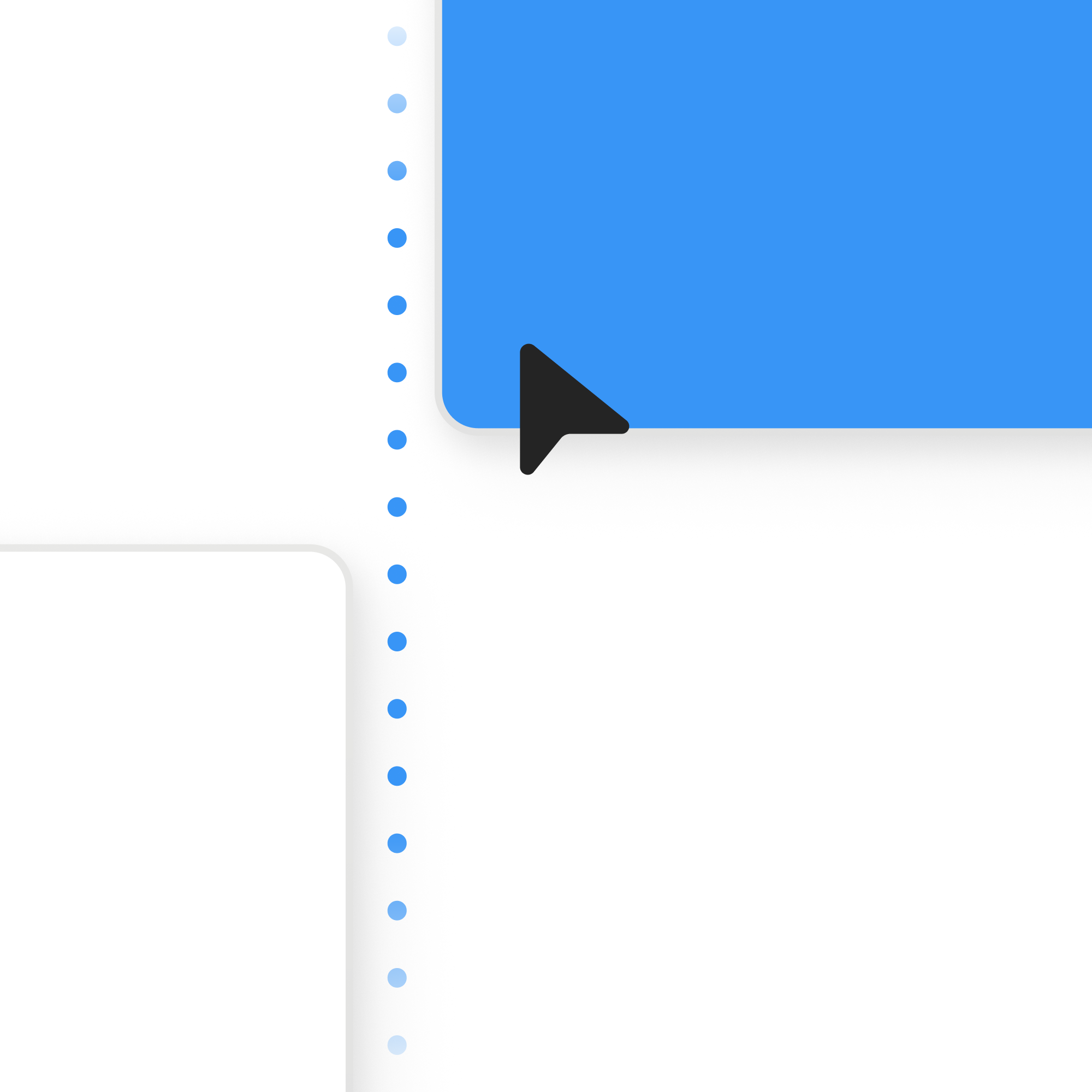
Alignment guides are common in design tools, presentation editors, and diagramming apps. Visual guides work, but they rely on a single sense. Users often need to zoom in or focus closely to confirm alignment. Haptic feedback adds a second channel, allowing users to feel when objects snap into place.
When to fire
When to fire
Use the visual guide as the trigger. When your snap logic shows an alignment guide, fire the haptic. No additional calculation is needed—the guide’s appearance is the event. If the guide doesn’t appear, don’t fire haptics.
Avoid duplicates
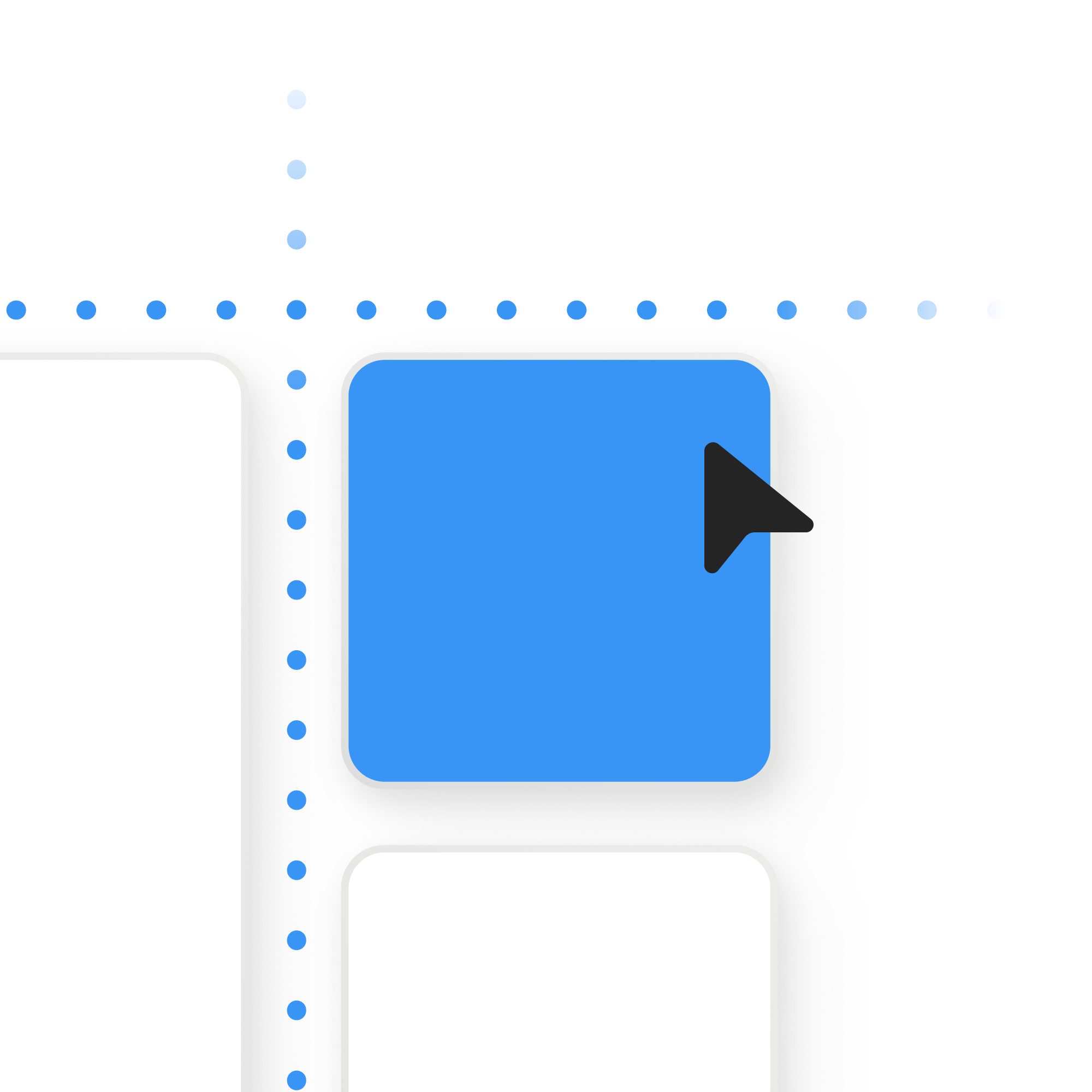
Fire one haptic per snap event. A shape can align to multiple guides at once (for example, left and top edges). Treat this as a single interaction—track active guides and only fire when a new guide appears.
Object Alignment
using Windows.Devices.Haptics;

private readonly HashSet<int> _activeGuides = new();

// After computing the currently visible guides, send haptic feedback
// only when a guide becomes visible for the first time.
var currentGuides = GetVisibleGuideIds();

bool hasNewGuide = currentGuides
    .Except(_activeGuides)
    .Any();

_activeGuides = currentGuides.ToHashSet();

if (hasNewGuide)
{
    InputHapticsManager.GetForCurrentThread()
        .TrySendHapticWaveform(
            KnownSimpleHapticsControllerWaveforms.Align,
            0);
}
Sliders are another case where haptics can improve interaction, but only when tied to meaningful positions. Anchor feedback to visible markers the user can understand.
When to fire
Fire haptics at slider tick marks. For example, a slider with ticks at 0, 25, 50, 75, and 100 should trigger feedback as the thumb crosses each tick. Avoid firing continuously between ticks, as this can feel distracting.
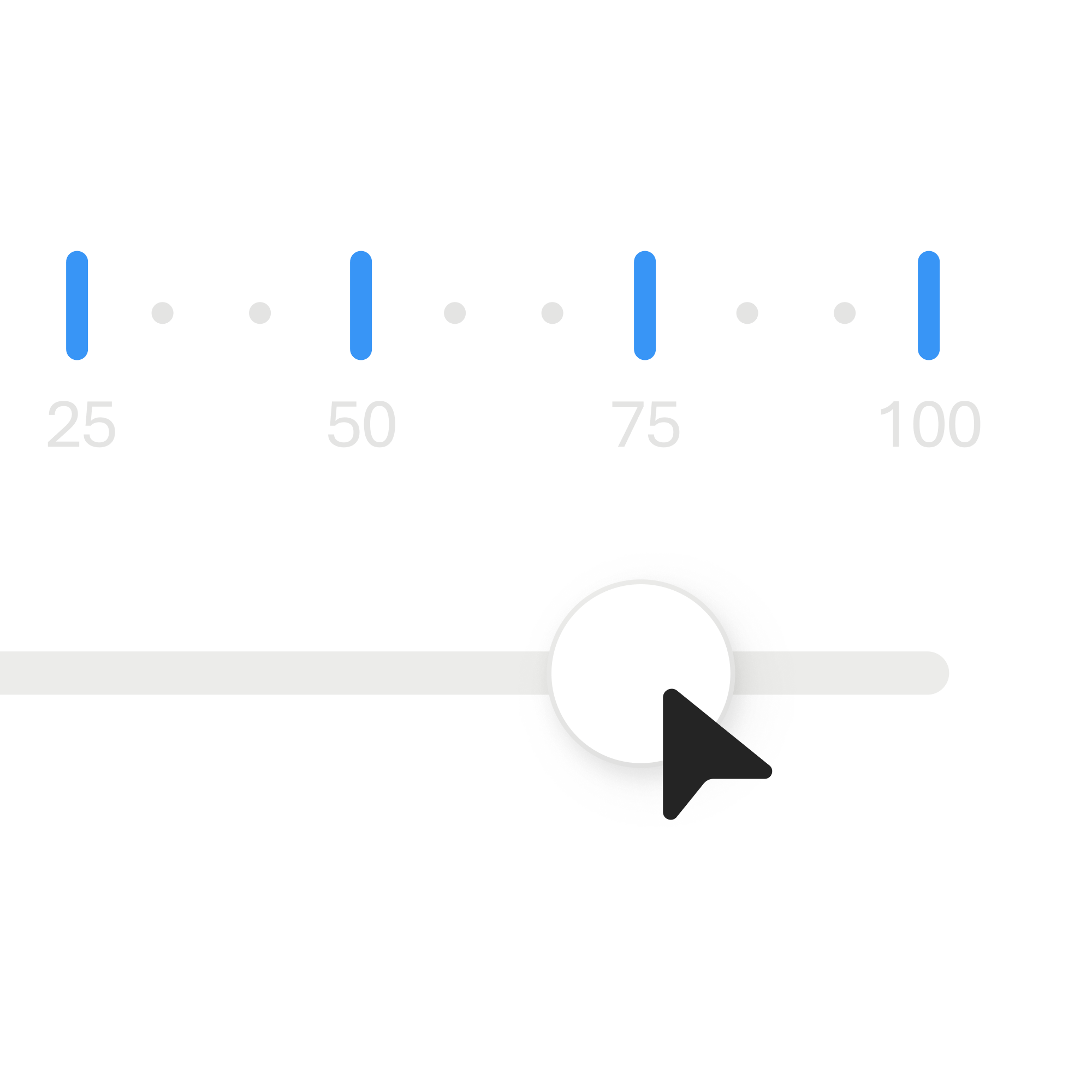
Slider ticks
using Windows.Devices.Haptics;

double previousValue;
double tickInterval = 25.0;

void OnSliderValueChanged(double newValue)
{
    int previousTick =
        (int)(previousValue / tickInterval);

    int currentTick =
        (int)(newValue / tickInterval);

    // Fire haptics when crossing a tick.

    if (currentTick != previousTick)
    {
        InputHapticsManager.GetForCurrentThread()
            .TrySendHapticWaveform(
                KnownSimpleHapticsControllerWaveforms.Step,
                0);
    }

    previousValue = newValue;
}
Refine the experience
The basic implementation uses the same feedback at each tick. To provide additional context, scale the haptic intensity based on the slider’s position. This helps users sense where they are within the range, not just that a tick was crossed.
Use the three-parameter overload of TrySendHapticWaveform, which accepts an intensity value from 0.0 to 1.0, and map the slider position to this range. For example, lower values can produce lighter feedback, while higher values feel stronger.
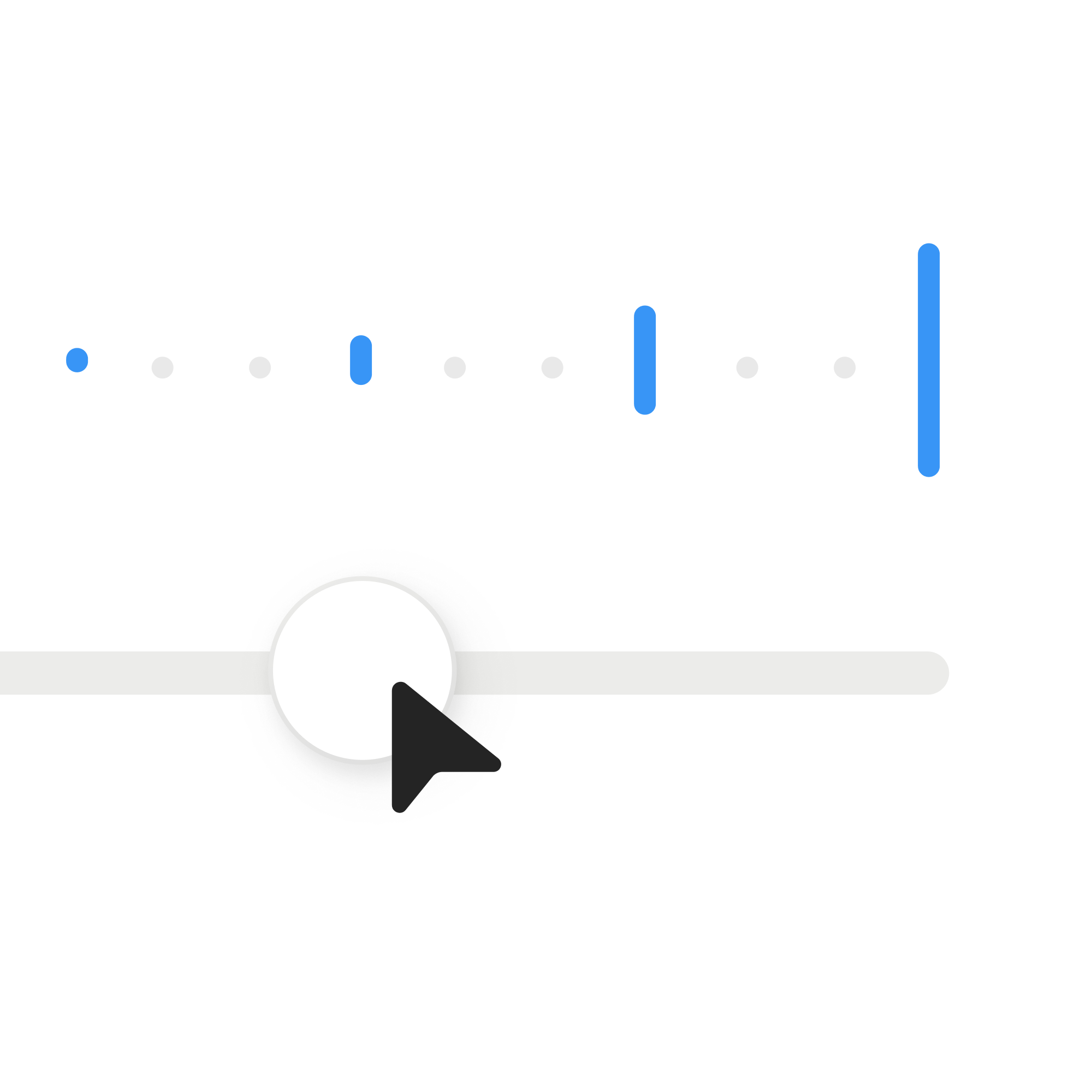
Intensity scaling
// Determine whether the thumb moved to a different tick.

int previousTick =
    (int)(previousValue / tickInterval);

int currentTick =
    (int)(newValue / tickInterval);

// Fire haptics only when crossing a tick.

if (currentTick != previousTick)
{
    // Convert the tick position into a normalized
    // intensity value between 0.0 and 1.0.

    double tickValue =
        currentTick * tickInterval;

    double intensity =
        (tickValue - slider.Minimum) /
        (slider.Maximum - slider.Minimum);

    InputHapticsManager.GetForCurrentThread()
        .TrySendHapticWaveform(
            KnownSimpleHapticsControllerWaveforms.Step,
            0,
            intensity);
}

previousValue = newValue;During a drag, an object can cross many alignment boundaries—page center, guides, and other objects. Triggering haptics at every crossing can overwhelm users, especially during fast movements when they are repositioning rather than trying to be precise.
Instead, use intent to determine when to fire haptics. The goal is to trigger feedback only when the user is trying to be precise and land on a specific position.
Approach 1: Speed Filter
Filter by speed
Some apps may choose to suppress haptics above a speed threshold so feedback is reserved for slower, more deliberate movement.
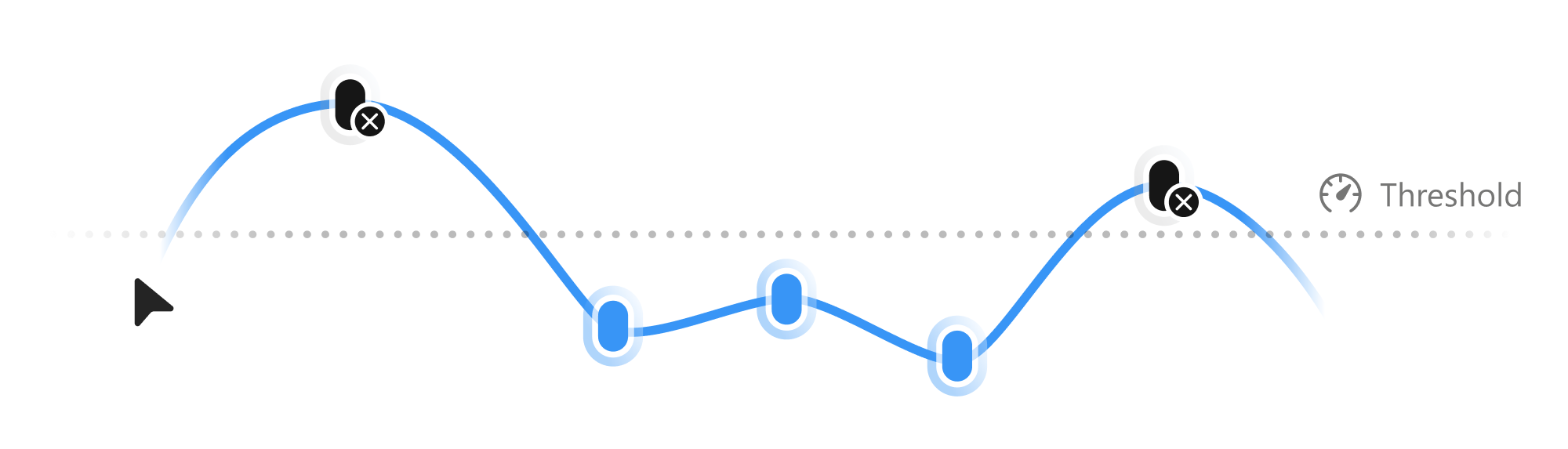
Stabilize the signal
Avoid using raw cursor deltas directly, as they can be noisy and vary across input types, DPI settings, and display configurations. Normalize and smooth the signal to produce more consistent behavior across devices.
Choose an appropriate threshold
Speed thresholds require careful tuning and validation across different devices, input types, display scales, and multi-display setups. Use a threshold that reliably separates traversing from aligning without suppressing intentional interactions.
Approach 2: Timer Debounce
Delay the trigger
When an object enters a trigger zone, start a short timer (for example, 50 ms). If the object remains in place when the timer completes, treat it as intentional and fire the haptic.
Suppress transient movement
If the object moves on before the timer completes, treat it as a pass-through and suppress the feedback.
Choose an appropriate delay
A short delay is enough to distinguish deliberate alignment from a quick pass, while remaining below the threshold of noticeable latency.
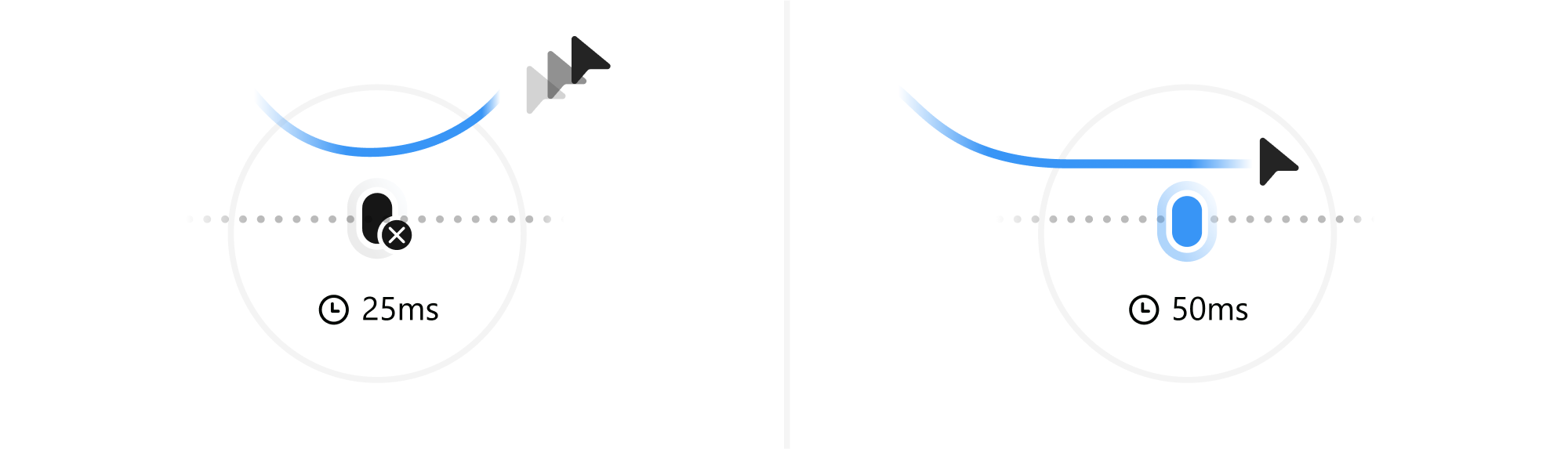
Speed filter vs. debounce
Speed filtering is reactive, measuring movement in real time. Debounce is predictive, waiting briefly to confirm intent.
Both are effective. Speed filtering can feel more immediate, but requires careful tuning to avoid noisy or inconsistent feedback. Debounce is simpler to implement and tends to be more stable. The sample app allows you to compare both approaches.
Read more
To stay in the know with Microsoft Design, follow us on Twitter and Instagram, or join our Windows or Office Insider program. And if you are interested in working with us at Microsoft, head over to aka.ms/DesignCareers.

Paper, please: The box that did more with less
How Microsoft reduced single-use plastic in packaging to just 0.07%
A simplified system
Our ongoing process to build an AI-forward design system that supports work today, while carrying us into tomorrow.
Design isn’t dying. It’s shifting left.
When the model is the new medium, shaping how it behaves in humanistic ways is design